Get started
- Install Handig Approvals from the Atlassian Marketplace. It is free for sites with up to 10 users.
- Open a page and choose ••• → Apps → Request approval.
- Optional: a space admin sets default approvers for the space, and a Confluence admin sets up templates for many spaces at once.
Request approval
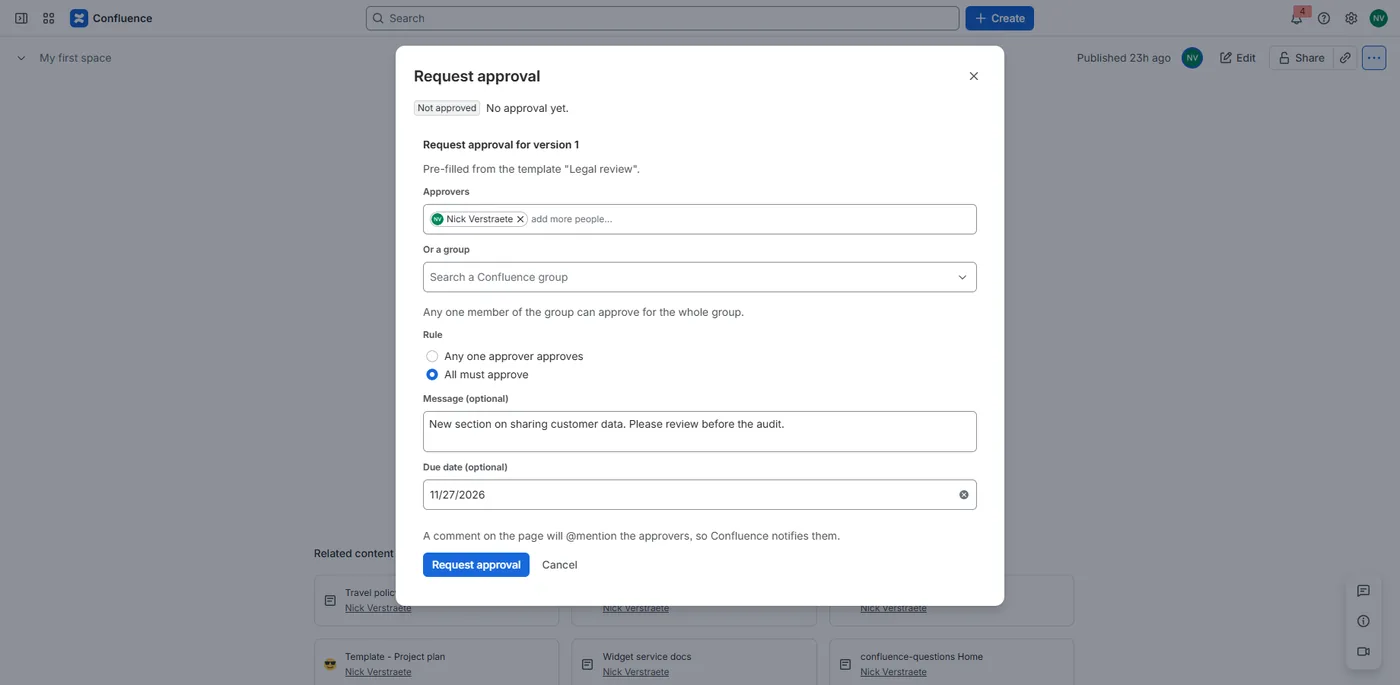
Every page has an Approval item in its byline, under the title. Choose it, or ••• → Apps → Request approval, and fill in:
- Approvers: up to 20 people;
- Or a group: one Confluence group. Any one member of the group can approve for the whole group;
- Rule: Any one approver approves or All must approve;
- Message and Due date, both optional. The due date shows in the overview; the app sends no reminders.
The request is for the page's current version. Only people who can edit the page can request approval, and a page has one open request at a time. The requester can withdraw it with Cancel this request. Approvals work on pages, not on blog posts.
Approve or reject
Approvers open the approval status in the byline, add a comment if they want and choose Approve or Reject. They only need permission to view the page. Each person decides once, and the decision is final.
- Any one approver approves: the first approval approves the page.
- All must approve: every listed approver approves, and one member of the group for the group.
- One rejection closes the request as rejected, under either rule.
The status in the byline
Once a page has a request, its byline shows the status:
- Pending approval (1 of 2): the approvals so far, out of those needed;
- Approved (v3): the version that was approved, with who approved it and when in the tooltip;
- Rejected: who rejected it and why;
- Changed since approval: the page was edited after the approved version. The dialog says which version was approved and which version the page is at now, and Compare the versions opens Confluence's comparison of the two.
Handig Approvals doesn't lock an approved page. When someone edits it, the byline says Changed since approval; request a new approval when the changes are ready. If that new request is cancelled, the page keeps the status it had before.
How approvers are told
When you request approval, the app posts a comment on the page, in your name, that @mentions the approvers, so Confluence notifies them in its usual way. For a group it mentions up to 25 members; a larger group is named instead. The outcome (approved, rejected or cancelled) is posted as a reply that @mentions the requester. A space admin can switch these comments off for the space. If a comment can't be posted, the request or decision is still saved, and the app says that nobody was notified.
History
The dialog shows the current request and the page's history: who asked, for which version, the rule and the message, and who approved or rejected, when and with which comment. The latest 50 requests are kept in full; older ones are kept as counts.
Anyone who can edit a page can change its stored data through Confluence's REST API. If the approval record no longer matches what the app saved, the dialog says The approval record was changed outside Handig Approvals, and the byline keeps the last status the app saved.
The Approvals overview
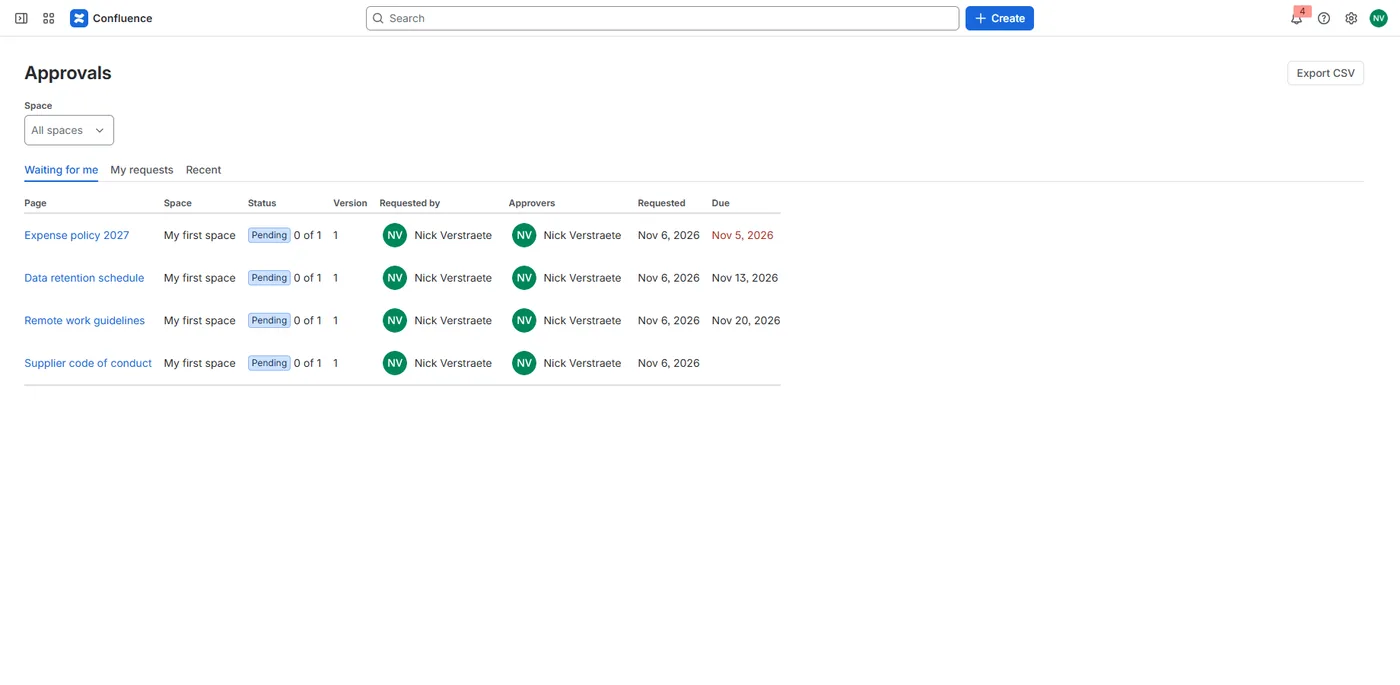
In Confluence, open Apps → Approvals. Three tabs list approvals across every space:
- Waiting for me: requests where you are an approver, directly or through a group, and haven't decided yet;
- My requests: the approvals you asked for;
- Recent: pages that were approved or rejected.
Filter by space and by status. The lists only show pages you may view. Export CSV shows the list as CSV text, up to 1,000 rows: copy it into a spreadsheet or save it as a .csv file. People appear as Atlassian account IDs, because the app stores no names.
Settings
- Space defaults: a space admin opens Space settings → Apps → Approvals and sets default approvers, a group and a rule. They fill in every new request in that space; the requester can still change them. Here the space admin also switches off Post a page comment that @mentions the approvers.
- Templates: a Confluence admin opens Confluence settings → Approval templates. A template is a named set of approvers, a group and a rule. Choose Assign to spaces to use it in many spaces at once, or Select all for every space. A space has at most one template.
A new request is filled in from the space's own default approvers if it has them, else from the space's template, else it starts empty.
Languages
Handig Approvals follows each user's Atlassian language: English, Dutch and French. The request comment is in the requester's language. The status in the page byline is in English.
Your data
Handig Approvals runs on Atlassian Forge. The approval history of each page is saved as a property of that page, so it stays with the page. A summary per page for the overview, the space defaults and the templates are kept in Forge hosted storage. People are stored as Atlassian account IDs, never names or e-mail addresses. Nothing leaves Atlassian. Details are in the privacy policy.
Uninstalling Handig Approvals
The approval history stays on each page as a page property, and the request comments stay as ordinary comments. The overview, the space defaults and the templates are deleted according to Atlassian's retention rules for Forge hosted storage. If you install the app again, the dialog still shows each page's history, with the warning that the record was changed outside the app; the byline shows Approval, and the page returns to the overview after its next request, decision or cancellation.
Help
See Support. We answer within 2 business days.