
Get started
- Install Handig Estimation Poker from the Atlassian Marketplace. It is free for sites with up to 10 users.
- In a project, open Estimation poker in the project sidebar.
- Choose New session, pick where the issues come from and choose Start session.
- The others open the same page and choose Join.
Start a session
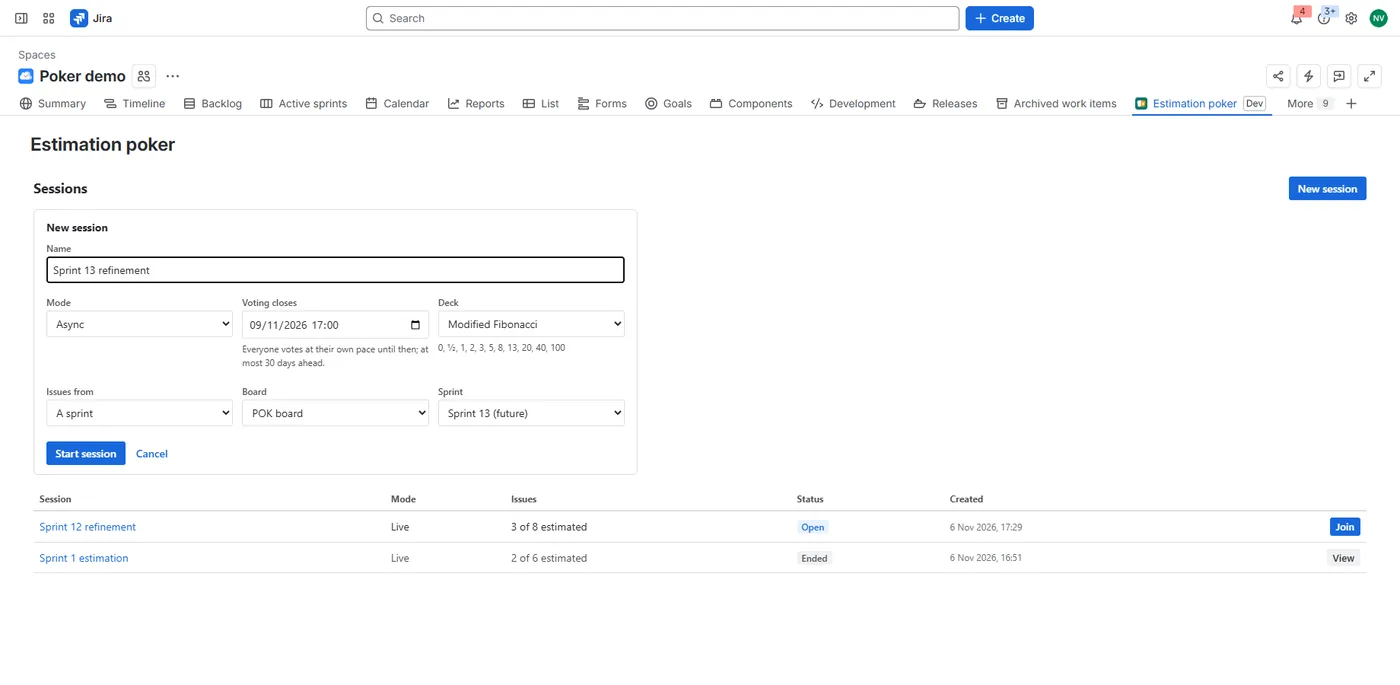
- Name, for example "Sprint 12 refinement";
- Mode: Live, or Async with a closing time;
- Deck (below);
- Issues from: a sprint (pick a board and one of its active or future sprints), a board's backlog, a JQL query, or empty, to add issues yourself.
Issues come in the board's rank order. A JQL query is sorted by rank unless it has its own ORDER BY. A sprint leaves out sub-tasks and done issues; a backlog leaves out sub-tasks. A session holds up to 100 issues.
To add issues, paste keys or links into Add issues: SHOP-12, a /browse/SHOP-12 link or a board link with the issue selected. Any issue type works, epics and sub-tasks included. The app tells you which keys it couldn't find. Move issues up or down, or remove them from the session.
Decks
- Fibonacci: 0, 1, 2, 3, 5, 8, 13, 21, 34, 55, 89;
- Modified Fibonacci (the default): 0, ½, 1, 2, 3, 5, 8, 13, 20, 40, 100;
- T-shirt sizes: XS, S, M, L, XL, XXL;
- Powers of 2: 0, 1, 2, 4, 8, 16, 32, 64;
- Custom: 2 to 20 cards of your own, separated by commas or spaces.
Every deck also has a "?" card for "not sure" and a coffee card for "I need a break". They don't count in the stats.
Vote and reveal
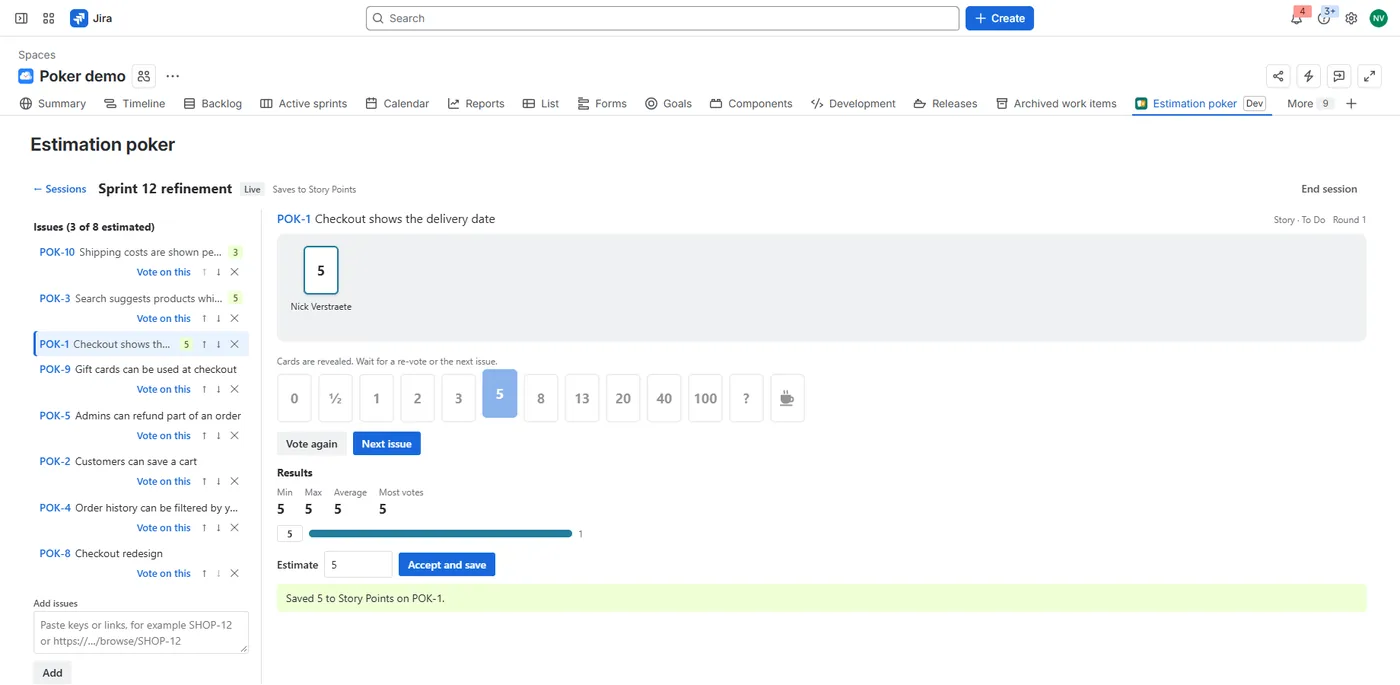
The session opens on its first issue; the facilitator can pick another with Vote on this. Everyone picks a card. Until the reveal, the others see that you voted, never your card. Click another card to change your vote, or the same card to take it back.
The facilitator chooses Reveal cards. Everyone then sees every card, with:
- Min and Max;
- Average;
- Most votes;
- Consensus, when at least two people voted and all picked the same card.
Then the facilitator chooses Vote again for a new round, accepts a value (below), or chooses Skip. Next issue moves on.
Accept and save the estimate
After the reveal, the Estimate box holds a suggestion: the consensus, the card with the most votes, or the deck's card at or above the average. Change it if the team agrees on another value, then choose Accept and save.
The app saves the value, in your name, to the field your board estimates with, such as Story Points. The room's header says which field: "Saves to Story Points". The save goes through the board's own estimation in Jira Software, so it works even when that field isn't on the issue's edit screen. A session from a JQL query, or an empty one, uses the project's first scrum or team-managed board. Original estimate takes a time, such as 4h; a plain number counts as hours.
When Jira doesn't save the value
If Jira refuses the value, the room says why and how to fix it, with Jira's own message, a Copy button for the value and Try again. For example, a T-shirt size can't go into a number field: type a number in the Estimate box and accept again, or copy the value. To save, you need permission to edit the issue. The session keeps the accepted value either way. If the project has no estimation field, accepted values stay in the session and can be copied.
Async sessions
Choose Async and when voting closes, at most 30 days ahead. Everyone votes on every issue at their own pace; until voting closes, people only see how many votes each issue has. When the time is up, or the facilitator chooses Close voting now, everyone sees all cards and stats per issue, and the facilitator accepts a value per issue.
End a session
End session closes it; an ended session shows its results read-only. Sessions nobody touched for 30 days end by themselves, and ended sessions are deleted 90 days later. The accepted values stay in Jira and in each issue's estimation history.
Estimation history on the issue
Open an issue, choose the apps button under its title and pick Estimation history. It lists the rounds for that issue: the session, the revealed votes, the accepted value, who accepted it, when, and whether Jira saved it. Each issue keeps its latest 20 entries. To show it on every issue, choose Show for all work items in the panel's ••• menu.
Project settings
A project admin opens Project settings → Estimation poker. Others see these settings read-only.
- Default deck: facilitators can still pick another deck per session.
- Save accepted values to: the board's estimation field (recommended), or another number field, or Original estimate. Another field is saved through the issue's edit screen, so Jira's own rules for that field apply.
- Who may start sessions, reveal, move on and accept: anyone in the session (the default), or project admins only. Everyone can vote either way.
- Post a short comment on the issue when a value is accepted, for example "Estimate agreed in estimation poker (Sprint 12): 3. Votes: 3, 3". Off by default.
Languages
Handig Estimation Poker follows each user's Atlassian language: English, Dutch and French. The comment on the issue is in the language of the person who accepted the value.
Your data
Handig Estimation Poker runs on Atlassian Forge. Sessions, cards, who is online and the project settings are kept in Forge hosted storage; the estimation history of each issue is a property of the issue. People are stored as Atlassian account IDs: names are looked up when shown and never stored, and the app shows initials instead of profile pictures. Issue summaries are read with your permissions and not stored, so everyone sees only the issues Jira lets them see. Nothing leaves Atlassian. Details are in the privacy policy.
Uninstalling Handig Estimation Poker
Accepted values stay in your Jira fields, comments stay on the issues, and the estimation history stays as a property of each issue. Sessions and project settings are deleted according to Atlassian's retention rules for Forge hosted storage.
Help
See Support. We answer within 2 business days.