
Get started
- Install Handig Markdown from the Atlassian Marketplace. It is free for sites with up to 10 users.
- Open the page the new pages should go under and choose ••• → Apps → Import Markdown here.
- Paste Markdown, or upload a
.mdfile or a.zip. Check the preview, then import. - To go the other way, choose ••• → Apps → Export as Markdown (below).
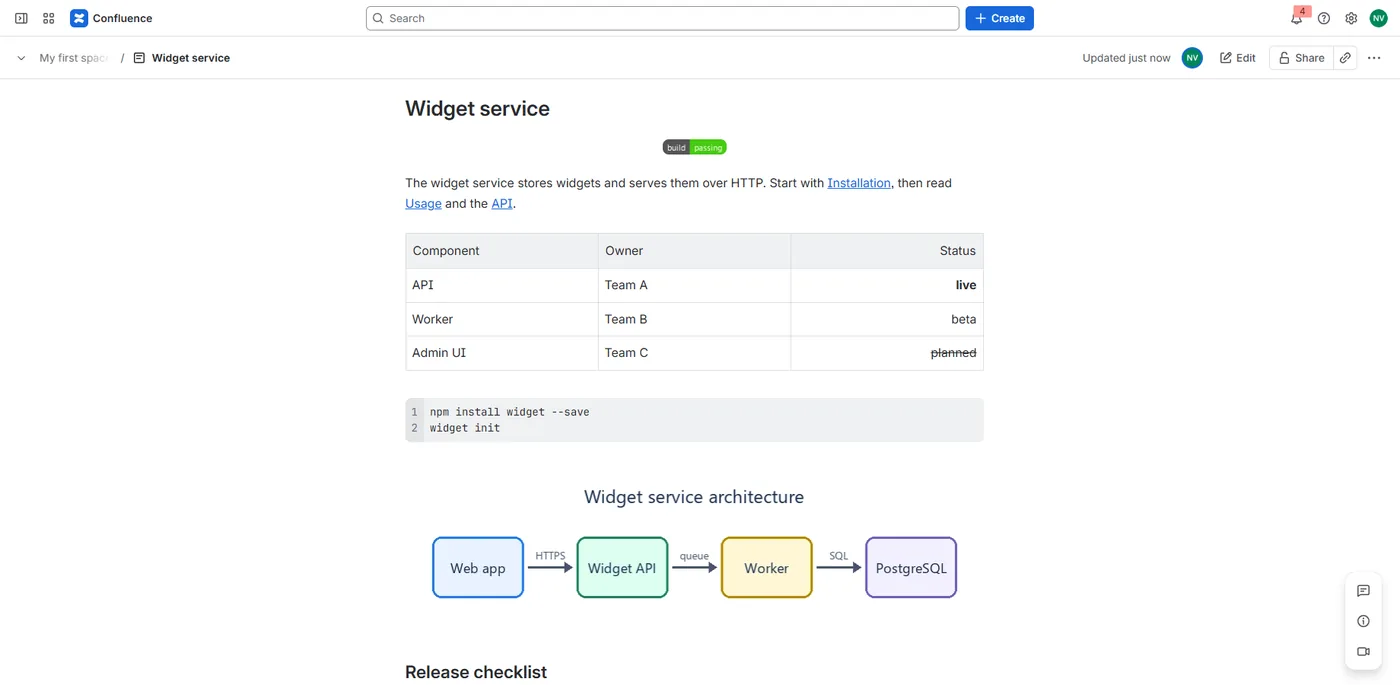
Imported pages are in Confluence's own page format, with no macro in between: you edit them in the normal editor, and Confluence search finds them like any other page.
Paste Markdown
On the Paste Markdown tab, paste or type Markdown and give the page a title. A title: in front matter wins over the title field. Choose Preview, then one of:
- Create a child page: one new page under this page;
- Replace this page's body: after a confirmation, the Markdown becomes the body of this page. Confluence keeps the old body in the page history.
Pasted text can't bring its images or linked files along. Upload a .zip to import those too.
Upload a file or a zip
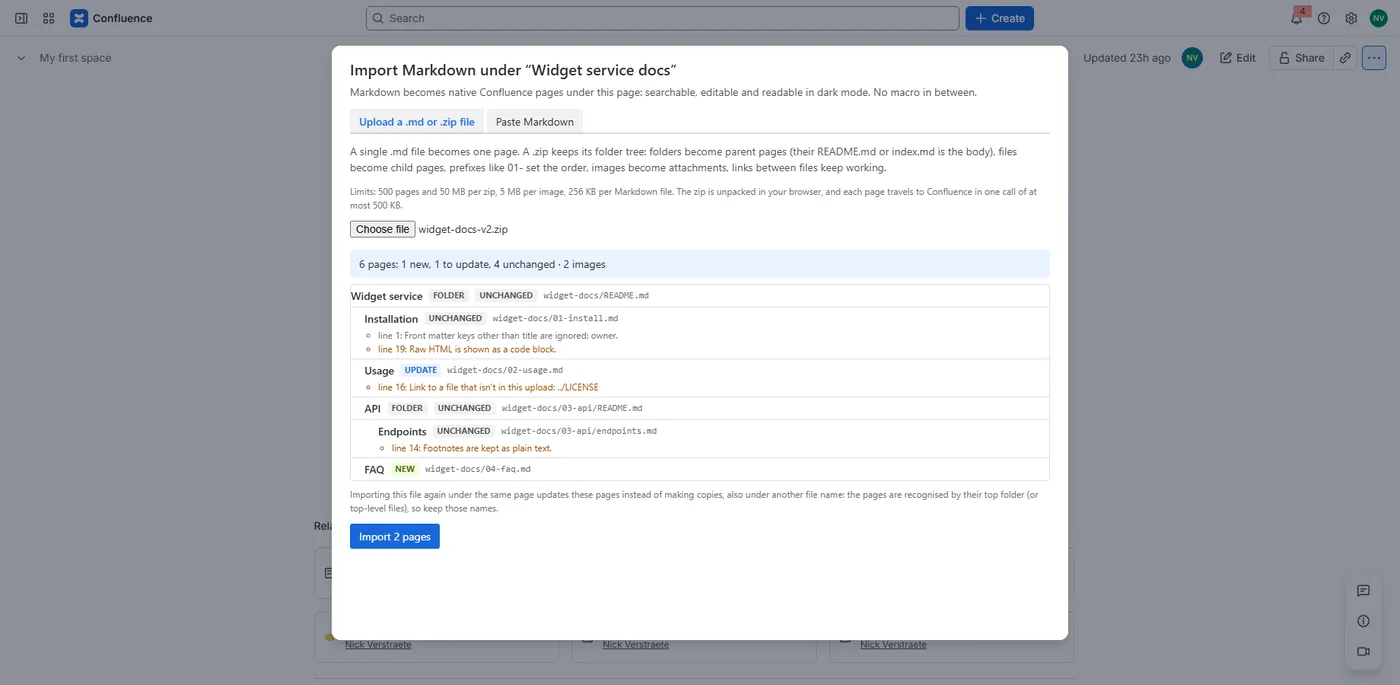
On the Upload a .md or .zip file tab, choose a file. A single .md or .markdown file becomes one page under this page. A .zip keeps its folder tree:
- folders that hold Markdown become parent pages, with their
README.md(elseindex.md) as the page body; - every other Markdown file becomes a child page;
- prefixes of 1 to 3 digits, like
01-or2_, set the order and are left out of the title;2024-plan.mdkeeps its year; - the title is the front matter
title, else the file name; - images become attachments of the page and show inline;
- links between files point at the new pages.
When two files in one upload have the same title, one is renamed. A title that is already used elsewhere in the space gets (2) after it. The import lists every page it renamed.
The preview
Nothing is written before you have seen the preview. It shows the page tree, how many pages are new, to update or unchanged, how many images come along, and the warnings per file with their line number, for example "line 19: Raw HTML is shown as a code block." The Import button appears below it. At the end the dialog says how many pages were added, updated and unchanged, with a link to open the top page.
A page with images, or with links to pages created later in the same import, gets two versions in its history: the page is created first, then its body is written.
Import again to update
Each imported page remembers the file it came from. Import the same file again under the same page, and:
- changed files update their page as a new version;
- new files become new pages, added at the end of their parent;
- unchanged pages and unchanged images are left alone;
- pages from the earlier import that aren't in this upload stay as they are. The preview counts them.
When nothing changed, the preview says "Nothing changed since the last import." An import is recognised by the page you import under and the name of the file. A copy your browser saved as docs (1).zip still counts as docs.zip, but a renamed zip counts as a new import: it creates new pages instead of updating the earlier ones. A page you deleted in Confluence is created again.
Limits
500 pages and 50 MB per zip (200 MB unpacked), 5 MB per image, 256 KB per Markdown file. The zip is unpacked in your browser. Images and Markdown files in a zip that are over the limit are left out and listed in the preview; a zip over the limits is refused.
What converts
Handig Markdown reads CommonMark and GitHub Flavored Markdown:
- headings, bold, italic, strikethrough, inline code, links and autolinks;
- bulleted and numbered lists; task lists (
- [ ],- [x]) become Confluence tasks; - tables, with their column alignment;
- quotes, horizontal rules, and fenced code blocks with their language;
- images: an image on a line of its own shows as an image; inside a heading, a task or formatted text it keeps only its alt text;
- GitHub alerts, like
> [!NOTE]and> [!TIP], become Confluence panels.
What becomes a code block, plain text or a warning:
- raw HTML becomes a code block, and HTML inside a line becomes inline code, each with a warning;
<br>becomes a line break; - HTML comments are left out, with a note;
- footnotes stay as plain text;
- front matter keys other than
titleare ignored, with a warning; - Confluence can't hold some things Markdown allows, such as a heading or a table inside a list or a quote, or a quote inside a quote. Such content becomes plain or bold text, with a warning;
- links to files that aren't in the upload, and images that are missing, are listed as warnings;
- links with an unsafe scheme, such as
javascript:, are removed, with a warning.
Export as Markdown
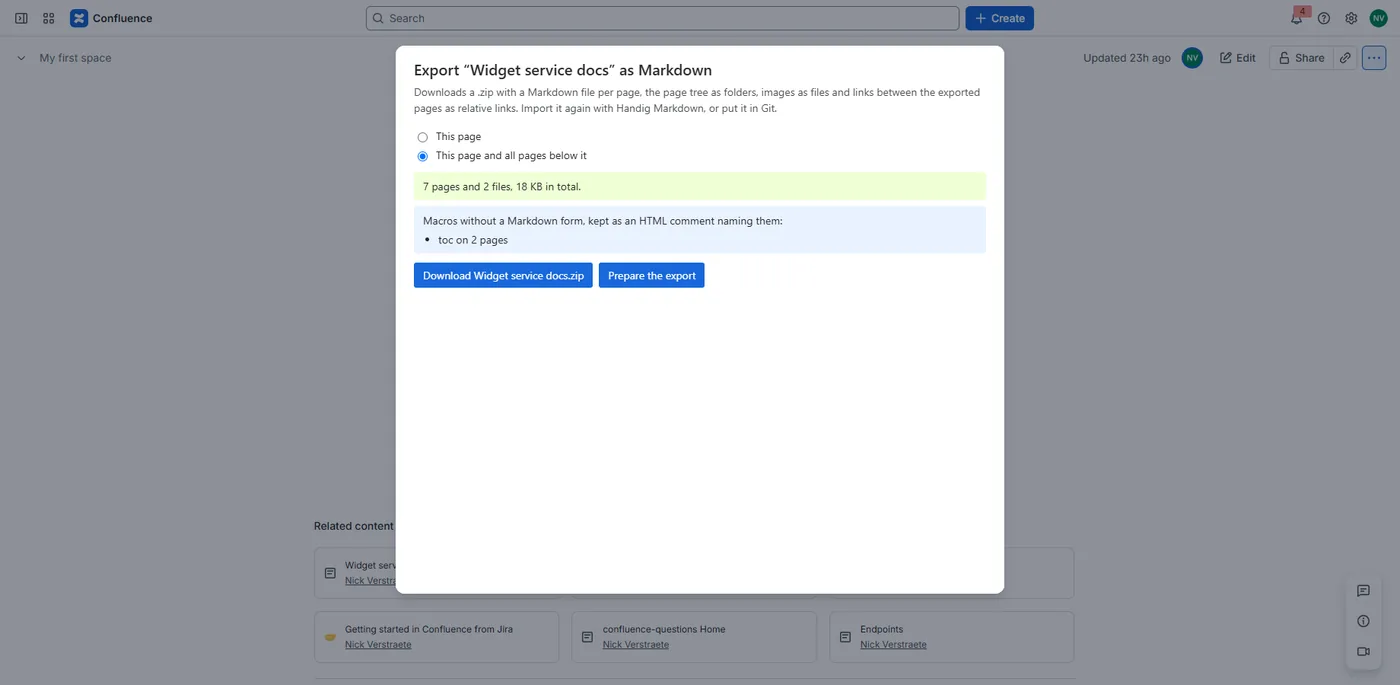
On a page, choose ••• → Apps → Export as Markdown, pick This page or This page and all pages below it, and choose Prepare the export. When it is ready, Download saves a zip:
- a page with child pages becomes a folder with a
README.md; other pages become numbered files such as01-Installation.md, in the order of the page tree; - images and other files go into an
imagesfolder, per page; - links between the exported pages become relative links;
- panels become GitHub alerts, and Confluence tasks become task lists;
- a macro becomes an HTML comment that names it, like
<!-- Confluence macro: toc -->, and the summary lists the macros per page; - mentions, dates, statuses and emoji become their text; an expand becomes a bold title with its content; layouts become their columns in order; merged table cells are split.
Whiteboards, databases and other content without a Markdown form are left out and counted. An export holds up to 500 pages, 20 MB per file and 150 MB in total. Import the zip again with Handig Markdown, or put it in Git.
Import at the top of a space
To create top-level pages, open Markdown import in the space sidebar. It works like the import on a page, without the option to replace a page's body.
Settings
Handig Markdown has no settings. It works with your own Confluence permissions: you import where you may create pages, and export what you may view. The pages you import are created in your name.
Languages
Handig Markdown follows each user's Atlassian language: English, Dutch and French.
Your data
Handig Markdown runs on Atlassian Forge. The Markdown and images you import are read in your browser and become ordinary Confluence pages and attachments. To recognise a re-import, the app saves the source file path and a content hash as a property of each imported page, keeps an index of them in Forge hosted storage, and adds a content hash to the comment of each imported image. Exports are built in Forge and in your browser, and saved by you; the app keeps no copy. The app stores no personal data. Nothing leaves Atlassian. Details are in the privacy policy.
Uninstalling Handig Markdown
Imported pages and their attachments are your Confluence content and stay, with the source property on each page. The re-import index is deleted according to Atlassian's retention rules for Forge hosted storage.
Help
See Support. We answer within 2 business days.