Get started
- Install Handig Numbered Headings from the Atlassian Marketplace. It is free for sites with up to 10 users.
- Open a page with headings and choose ••• → Apps → Number headings.
- Check the preview and choose Apply.
Number headings
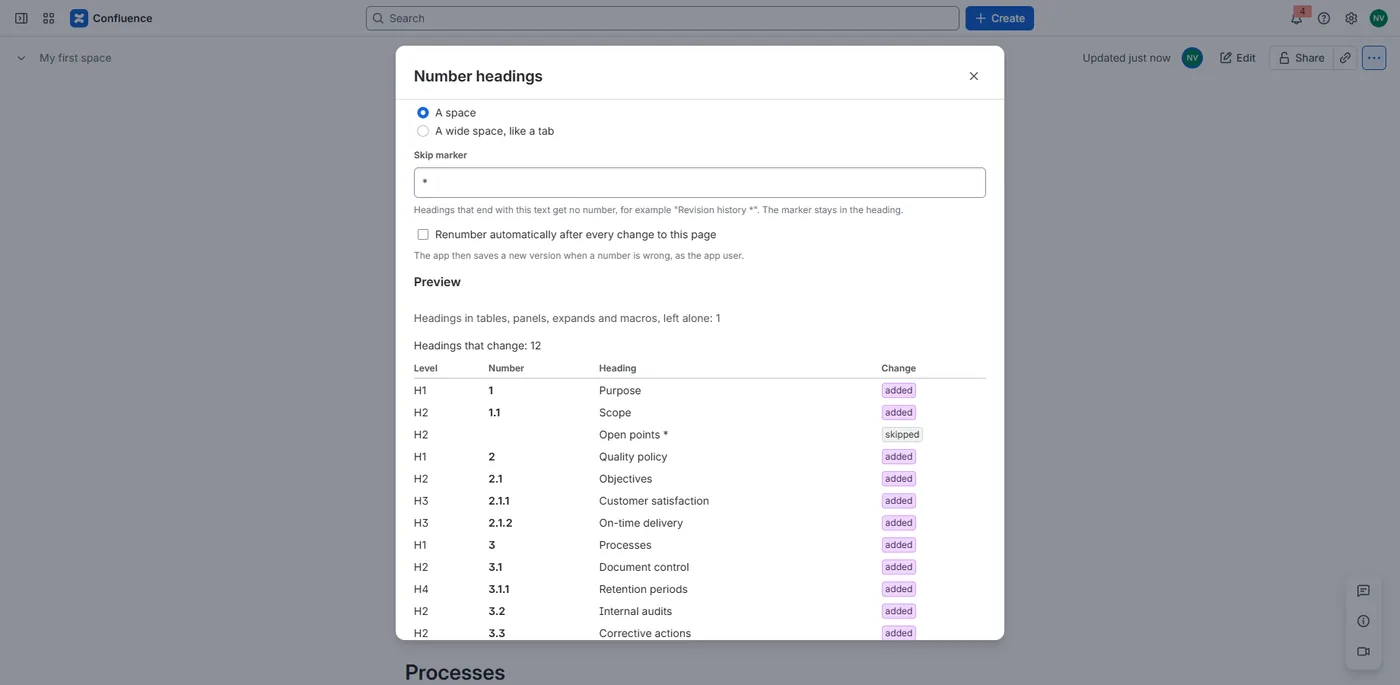
The dialog shows the options and, below them, every heading with its new number and what changes: added, replaced or removed. The preview follows the options as you change them.
- Number from: Heading 1, 2 or 3;
- Down to: as deep as Heading 6;
- Number format:
1.2.3or1.2.3.; - Prefix: optional text before every number (below);
- After the number: a space, or a wide space, like a tab;
- Skip marker (below).
Apply saves the page as a new version in your name, with the comment "Numbered the headings (Handig Numbered Headings)". Only people who can edit the page can number it. Publish a draft first; blog posts can't be numbered.
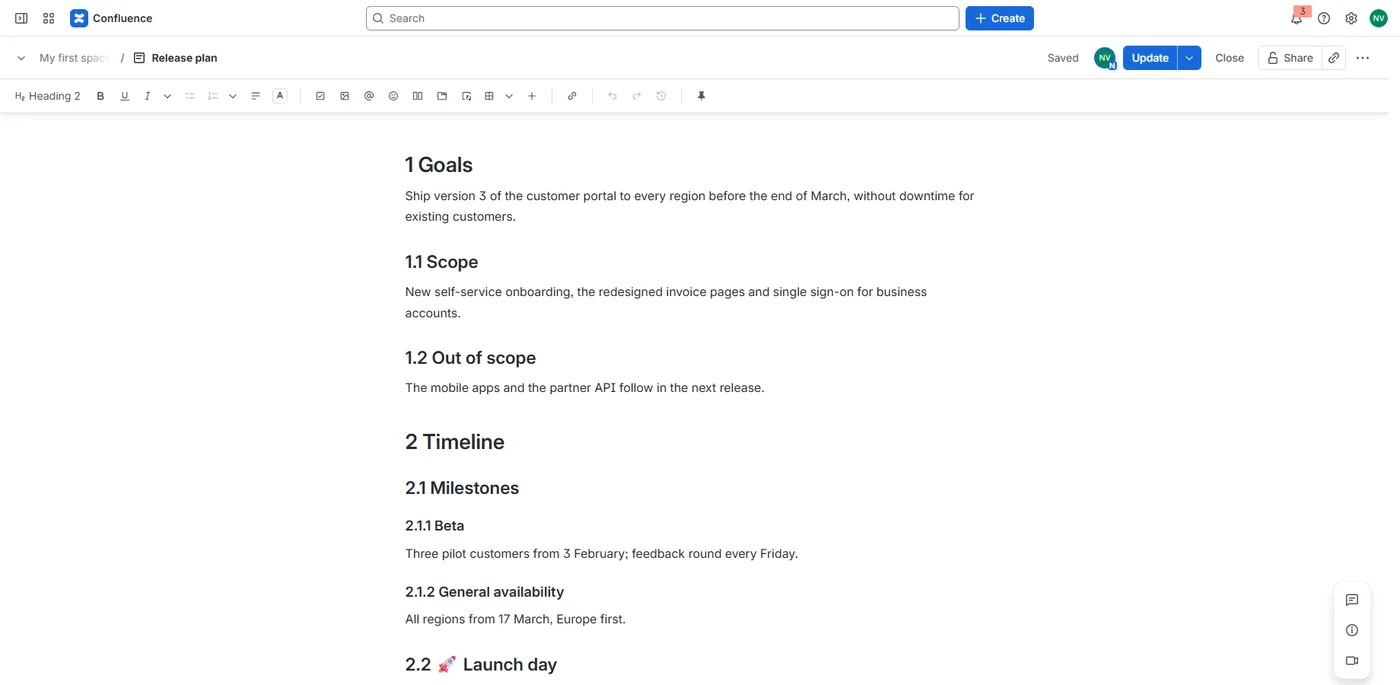
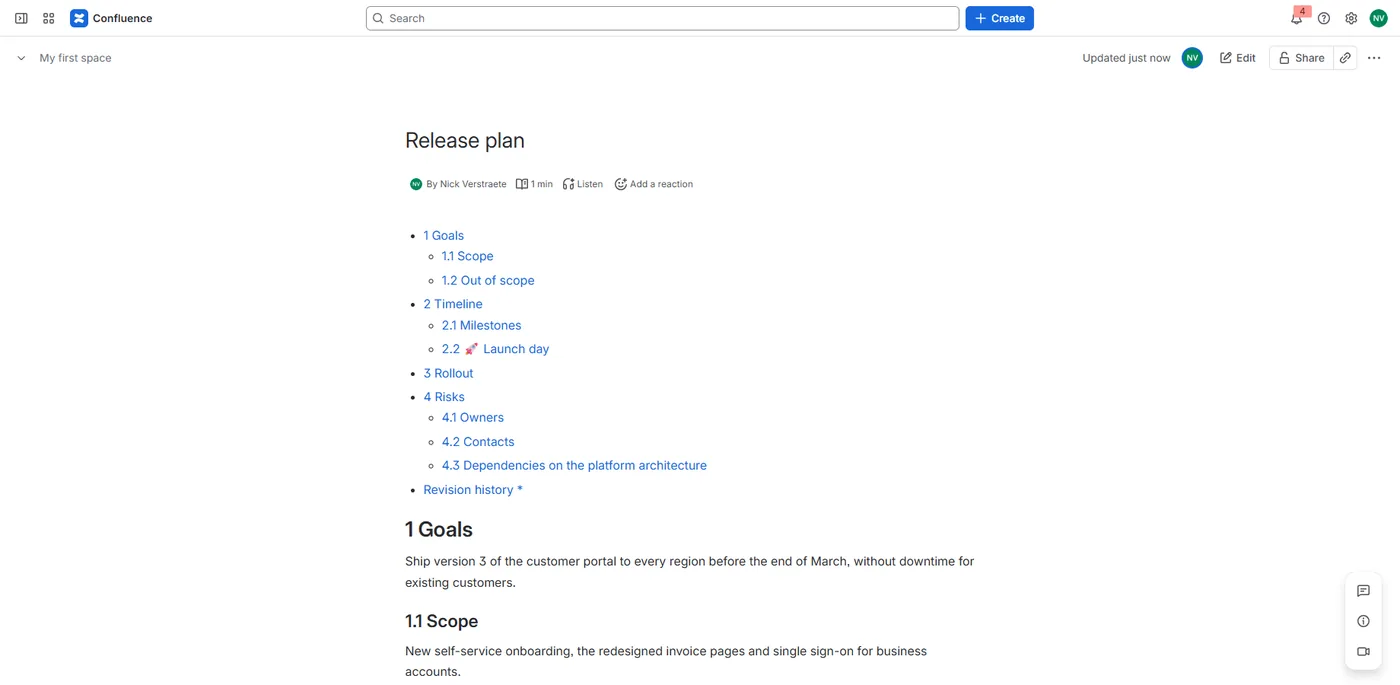
Numbers follow the outline, not the heading level: a Heading 4 straight under a Heading 2 gets 1.1, never 1.0.1. Headings above Number from or below Down to get no number and don't change the others.
The numbers are part of the heading text, with no macro around your content. You see them while you edit, and they go wherever Confluence shows the heading, such as exports, the table of contents and search results.
Links to headings: a heading's anchor follows its text, so when a number changes, links to that heading's #anchor stop working, as after any change to a heading.
Skip a heading
End a heading with the skip marker, a space and an asterisk by default: Revision history *. The heading gets no number, doesn't count, and keeps the marker. You can change the marker in the dialog or in the defaults: 1 to 10 characters.
Add a prefix
A prefix goes before every number: A.4- gives A.4-1, A.4-1.1 and so on. Use up to 20 characters.
Run it again, or remove the numbers
After you add, move or delete sections, run Number headings again. The app ends every number it writes with a no-break space (or the wide space), which is how it recognises its own numbers: it replaces them instead of adding new ones. Numbers you typed yourself, like the year in "2024 Results", are left alone.
Remove numbers takes out every number the app wrote and turns auto-renumber off.
Auto-renumber
Tick Renumber automatically after every change to this page before you choose Apply. After each published change, the app checks the numbers. When one is wrong, for example after someone added a section, it saves a new version as the app user, with the comment "Renumbered the headings automatically (Handig Numbered Headings)". When every number is right, it saves nothing. Auto-renumber is off until you turn it on, page by page.
Which headings are numbered
Headings directly in the page and in layout columns are numbered, in reading order. Headings in tables, panels, expands and macros are left alone; the dialog says how many there are.
Settings
Each page remembers its own options. Defaults for pages that have none:
- Space defaults: a space admin opens Space settings → Apps → Handig Numbered Headings and saves the options. Use the site defaults removes them again.
- Site defaults: a Confluence admin opens Confluence settings → Handig Numbered Headings.
A page's own options come first, then the space defaults, then the site defaults, then the app's own: Heading 1 down to Heading 6, format 1.2.3, no prefix, a space after the number and the skip marker of a space and an asterisk. The dialog says where its options come from.
Languages
Handig Numbered Headings follows each user's Atlassian language: English, Dutch and French.
Your data
Handig Numbered Headings runs on Atlassian Forge. The numbers are part of your page text, saved as normal page versions. Each page's options are saved as a property of the page; the space and site defaults are in Forge hosted storage. The app stores no personal data: no account IDs, names or e-mail addresses. Nothing leaves Atlassian. Details are in the privacy policy.
Uninstalling Handig Numbered Headings
The numbers stay in your headings, because they are page text: choose Remove numbers on a page first if you want them gone. Auto-renumber stops. The page options stay as page properties; the space and site defaults are deleted according to Atlassian's retention rules for Forge hosted storage.
Help
See Support. We answer within 2 business days.