
Get started
- Install Handig Diagrams from the Atlassian Marketplace. It is free for sites with up to 10 users.
- In a page, type /plantuml, /mermaid or /openapi and pick the macro.
- Moving from another diagram or Swagger app? Convert your pages in one go.
Draw a diagram
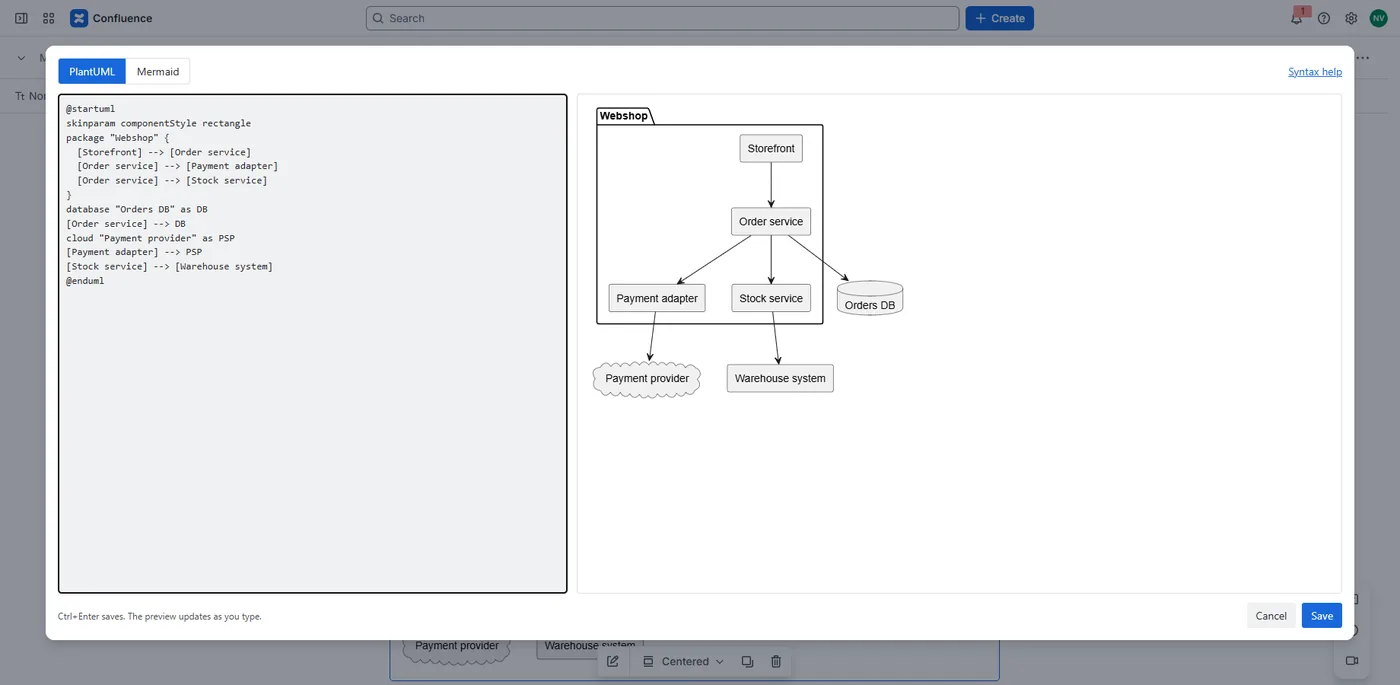
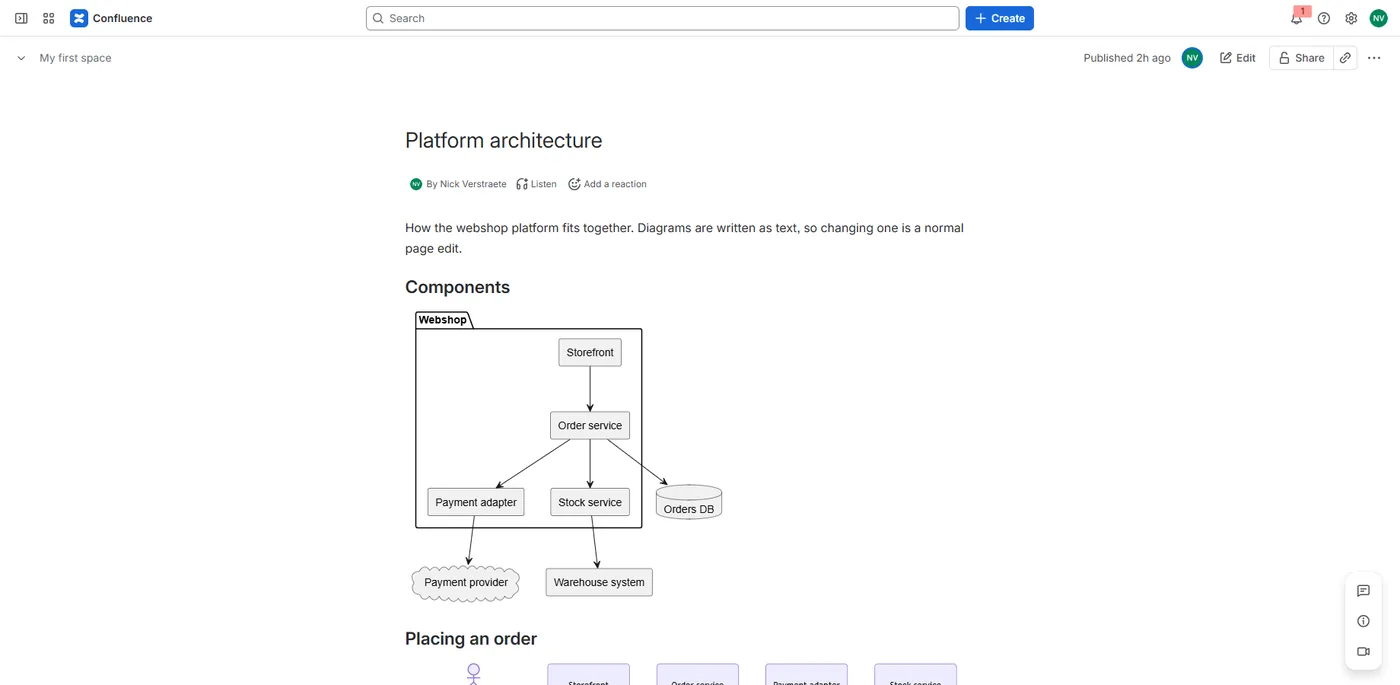
The editor opens when you insert the macro: the diagram text on the left, a live preview on the right. Switch between PlantUML and Mermaid at the top; Syntax help links to each language's reference. Press Save or Ctrl+Enter. To change a diagram later, edit the page and open the macro again.
- PlantUML: sequence, class, activity, state, component, use case and other diagrams.
@startumland@endumlare optional. - Mermaid: flowcharts, sequence diagrams, Gantt charts, class and state diagrams, and more.
If the text has an error, the macro shows the error message instead of the diagram, with the line at fault. Diagrams follow Confluence's light or dark theme.
API docs from an OpenAPI spec
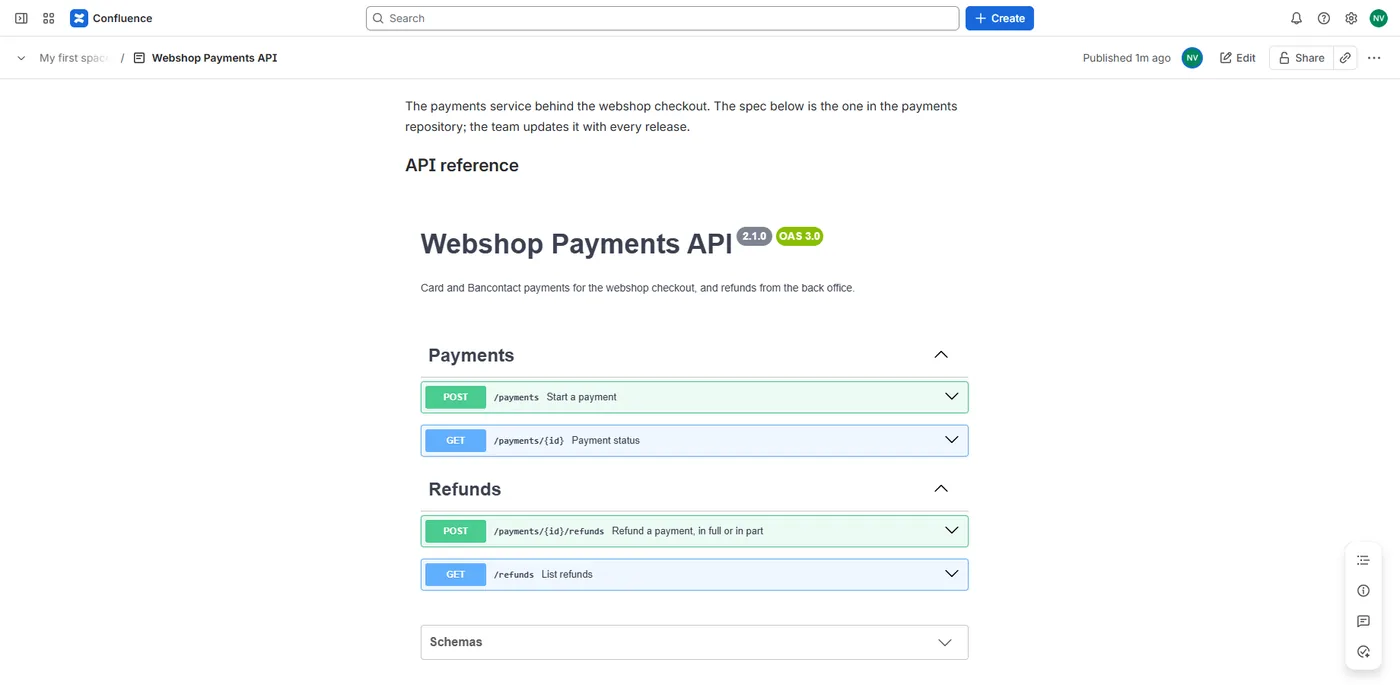
Type /openapi in a page and pick OpenAPI spec, or switch a macro to OpenAPI at the top of the editor. Paste your spec over the example: YAML or JSON, OpenAPI 3 or Swagger 2.0. The preview on the right shows the result as you type; Syntax help opens the OpenAPI Specification.
On the page, readers get interactive API documentation drawn by Swagger UI: the operations grouped by tag, and each operation opening on a click to show its parameters, request body and responses. The schemas are listed at the end.
- Nothing leaves Confluence. The spec is read from the page and drawn in the reader's browser. Try it out is switched off, so the page never calls your API, and the spec isn't sent to an online validator.
- One document per macro. Paste the whole spec into the macro: Handig Diagrams doesn't load a spec from a URL, or a
$refthat points to another file. References inside the document work. - Up to 200,000 characters per macro, the same limit as diagrams.
If the text isn't valid YAML or JSON, or has no openapi or swagger field at the top, the macro says so instead of drawing the spec. Specs follow Confluence's light or dark theme.
Move diagrams from another app
Handig Diagrams converts the macros of PowerPlantUML (Skylab Ventures), Mermaid for Confluence and Swagger UI for Confluence (both Tech Labs). All three run on Atlassian Connect, which reaches end of support in January 2027.
- As a Confluence admin, open Confluence settings → Move diagrams from other apps.
- Choose Find old diagrams. The list shows every page and blog post with old diagram or Swagger UI macros, how many convert, and which need a hand.
- Choose Convert all. Each page is saved as a new version with the note "Diagrams moved to Handig Diagrams".
- Check a few pages, then remove the old app.
The diagrams and specs are stored in your pages, not in the old app, so the conversion works whether the old app is still installed or not. To undo a page, restore its previous version from the page history.
Needs a hand: a macro that loads its diagram or spec from a URL (for example a file on GitHub, or a Swagger UI macro with a stored user name and password) is listed but not converted, because Handig Diagrams never fetches anything from outside Confluence. Paste the diagram text or the spec into a new Handig Diagrams macro instead.
PDF and Word export
Exports show the diagram's text, or the spec as YAML or JSON, as a code block, because the diagram itself is drawn by your browser.
Languages
Handig Diagrams follows each user's Atlassian language: English, Dutch and French.
Your data
Handig Diagrams runs on Atlassian Forge and stores nothing of its own: each diagram's text or spec is saved in the page, as part of the macro. Diagrams and specs are drawn in the reader's browser, with no diagram server, so they never leave Confluence. Details are in the privacy policy.
Uninstalling Handig Diagrams
The diagram text and specs stay in your pages. Without the app, Confluence shows the macro as unavailable; reinstall to draw them again.
Help
See Support. We answer within 2 business days.